- Installing Scratch and setting up the environment
- Exploring the Scratch interface and tools
- Understanding sprites, stage, and blocks
- Moving sprites and controlling actions
About Program
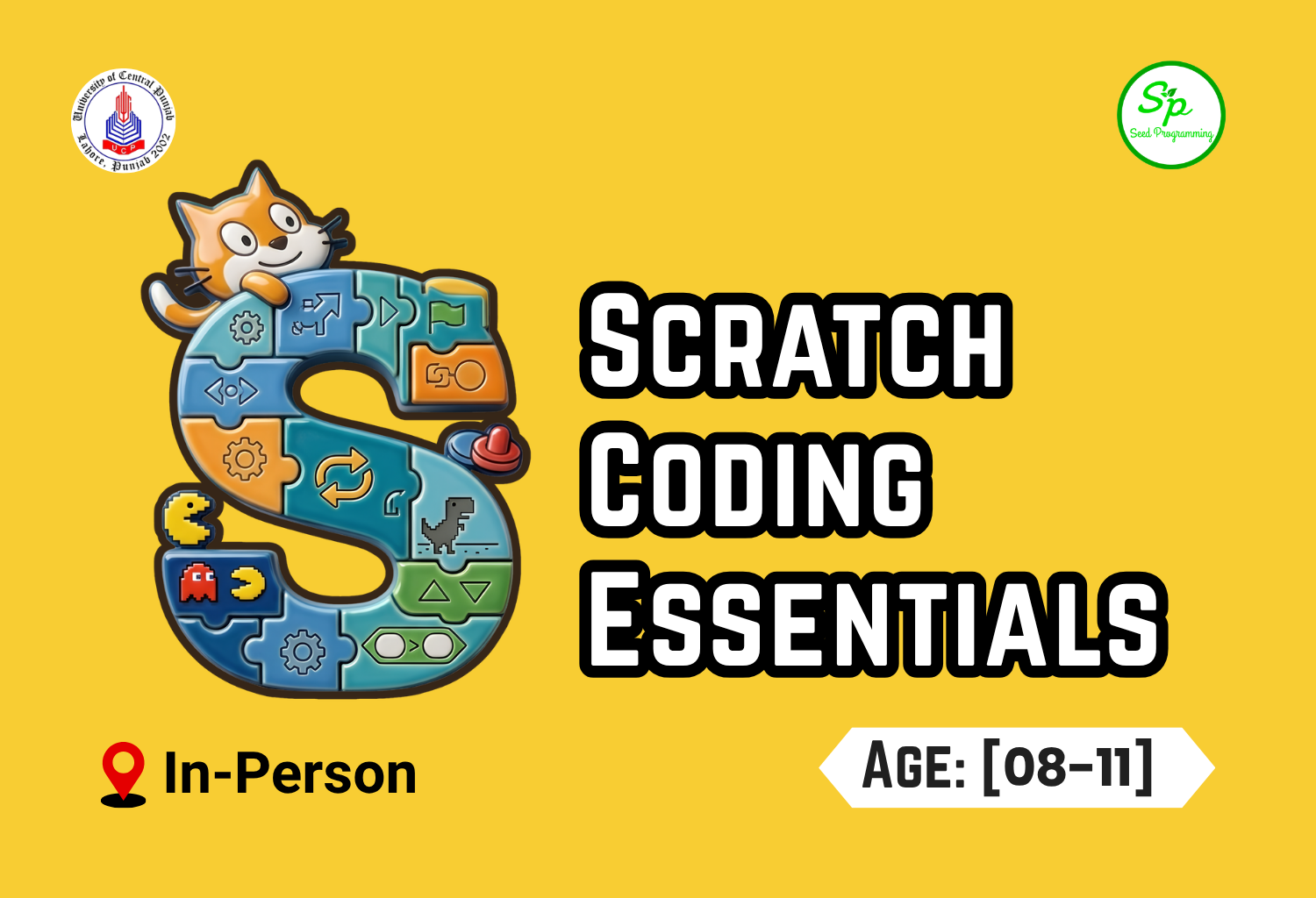
Scratch course is designed to introduce kids to programming through creativity, games, and visual thinking. Students start by exploring the Scratch interface and gradually learn how to animate characters, draw with code, and build interactive games. Through mini-projects like a Pac-Man and Space Invader, learners develop logical thinking and problem-solving skills. The course ends with polished games, presentations, and peer feedback to build confidence and communication skills.
In Collaboration with University of Central Punjab (UCP)
Course Outline
Lecture 1: Getting Started with Scratch
Lecture 2: Turtle Graphics & Drawing Basics
- Using the Pen extension
- Drawing lines and shapes
- Creating colorful patterns and artwork
- Mini Activity: Design your own drawing
Lecture 3: Color Pop Game - Part 1
- Introduction to the Color Pop game
- Creating colorful balloon/ball sprites
- Making sprites appear randomly on the screen
- Using mouse clicks to pop objects
- Mini Project: 🎈 Build the basic Color Pop gameplay
Lecture 4: Color Pop Game - Part 2
- Adding score variables
- Creating a countdown timer
- Adding sound effects and animations
- Increasing difficulty with speed and more objects
- Mini Project: 🌈 Complete and polish the Color Pop Game
Lecture 5: Frog Crossing Game - Part 1
- Creating the frog character
- Adding moving obstacles
- Handling collisions
- Building core gameplay mechanics
Lecture 6: Frog Crossing Game - Part 2
- Adding scoring systems
- Creating levels
- Win and lose conditions
- Testing and improving the game
Lecture 7: Car Racing Game - Part 1
- Introduction to racing game mechanics
- Creating the player car sprite
- Using keyboard controls for movement
- Designing the race track and road
- Mini Project: 🚗 Build a playable racing track
Lecture 8: Car Racing Game - Part 2
- Adding enemy cars and obstacles
- Implementing collision detection
- Creating score and distance tracking
- Adding sound effects and game-over screens
- Mini Project: 🏁 Complete and polish the Car Racing Game
Lecture 9: Space Shooter Game - Part 1
- Creating a spaceship
- Adding shooting mechanics
- Creating enemies
- Collision detection for shooting
Lecture 10: Space Shooter Game - Part 2
- Adding score tracking
- Creating lives and health systems
- Adding sounds and effects
- Balancing gameplay difficulty
~ CREATE ACCOUNT ON SCRATCH
Introduction to the Scratch platform and its purpose.
Opened the Scratch website and navigated to the sign-up page.
Created a new Scratch account step by step.
Chose a unique username and created a secure password.
Entered the required account information correctly.
Verified the account using the registered email address.
Logged into Scratch for the first time after registration.
Explored the Scratch dashboard and explained the basic interface for new users.
Lecture 01: Introducing Scratch - Understanding Coordinates & Joining the Dots
- Introduction to the coordinate plane (X-axis and Y-axis)
- Understanding positive and negative coordinates
- Locating points using ordered pairs (x, y)
- Plotting points accurately on a grid
- Reading coordinates of given points
- Joining plotted points to create lines and shapes
- Identifying patterns and pictures formed by connected points
- Solving fun coordinate challenges and drawing activities using plotted points
Lecture 02/03: Puppy Road Crossing Game
- Drew the road, grass, and footpath using the Paint editor.
- Added car sprites to the game scene.
- Programmed the cars to move across the road.
- Added random speeds so each car moves differently.
- Added a puppy character as the player.
- Programmed the puppy to move using keyboard controls.
- Created collision detection between the puppy and cars.
- Added a “Puppy Dead” message when the puppy gets hit by a car.
- Tested and improved the game to make road crossing challenging and fun
Lecture 04: Dot-to-Dot Drawing and Cool Name Animation Effects
- Downloaded a dot-to-dot image from the internet.
- Imported the dot-to-dot image into Scratch.
- Learned how to use the Pen tool in Scratch.
- Joined the dots to create a complete drawing.
- Added name sprites to the project.
- Applied the Color Changing effect to the name sprites.
- Applied the Whirl effect to create a twisting animation.
- Applied the Fisheye effect to distort the sprites creatively.
- Applied the Pixelate effect to give the sprites a pixelated appearance.
- Applied the Ghost effect to make the sprites transparent.
Nourishing the Programmer in you!
schoolofseedprogramming@gmail.com
query@seedprogramming.org